
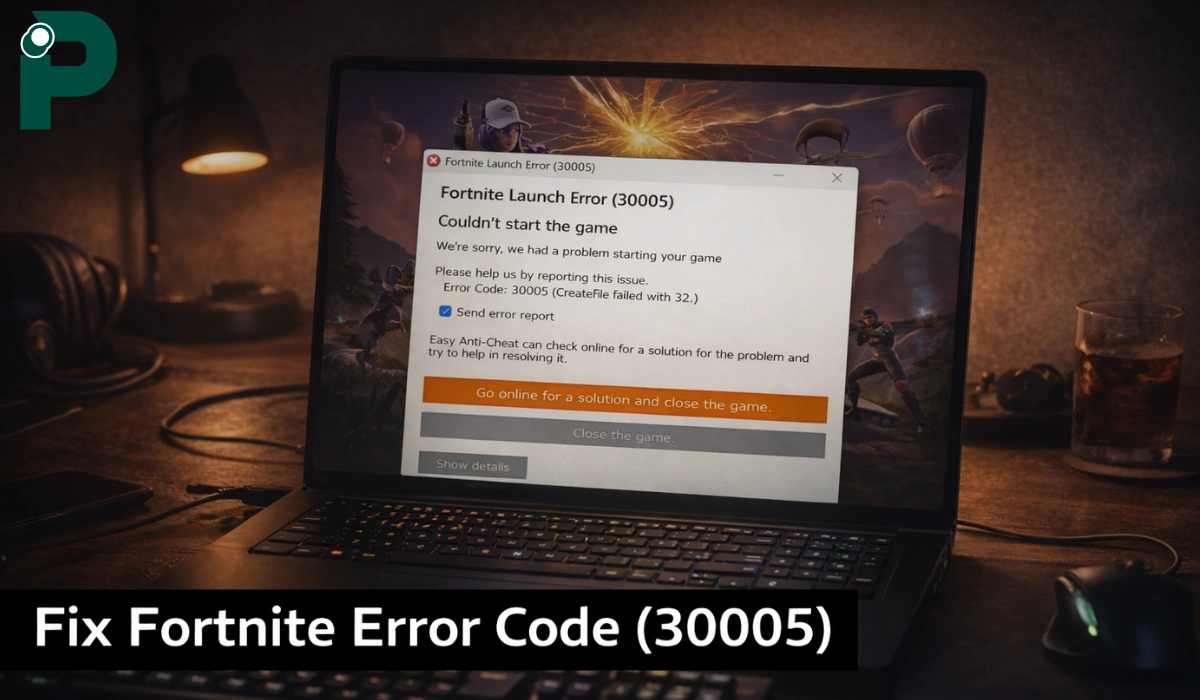
You open Fortnite, click play, and nothing happens. Then this strange error shows up”Launch Error 3005“. It’s annoying. You just want to play, not troubleshoot files and settings.
This problem usually comes from Easy Anti-Cheat. When this happens, the game can’t start at all. But don’t worry. I’ll walk you through what this error means, why it happens, and how you can fix it without confusion.
Contents
- 1 What Is Fortnite Error Code 30005?
- 2 Common Causes of Fortnite Error Code 30005
- 3 How to Fix Fortnite Error Code 30005?
- 3.1 Fix #1: Restart Your Computer
- 3.2 Fix #2: Close Background Applications
- 3.3 Fix #3: Run Fortnite as Administrator
- 3.4 Fix #4: Verify Fortnite Game Files
- 3.5 Fix #5: Delete EasyAntiCheat.sys File
- 3.6 Fix #6: Repair Easy Anti-Cheat
- 3.7 Fix #7: Ensure Easy Anti-Cheat Service Is Running
- 3.8 Fix #8: Disable Antivirus or Add Exception
- 3.9 Fix #9: Update Windows System
- 3.10 Fix #10: Update GPU Drivers
- 3.11 Fix #11: Reinstall Easy Anti-Cheat
- 3.12 Fix #12: Perform a Clean Boot
- 3.13 Fix #13: Remove Mods or Unauthorized Tools
- 3.14 Fix #14: Disable Kernel Security Feature
- 3.15 Fix #15: Reinstall Fortnite (Last Resort)
- 4 Prevention Tips to Avoid Fortnite Error Code 30005 in Future
- 5 Conclusion
What Is Fortnite Error Code 30005?
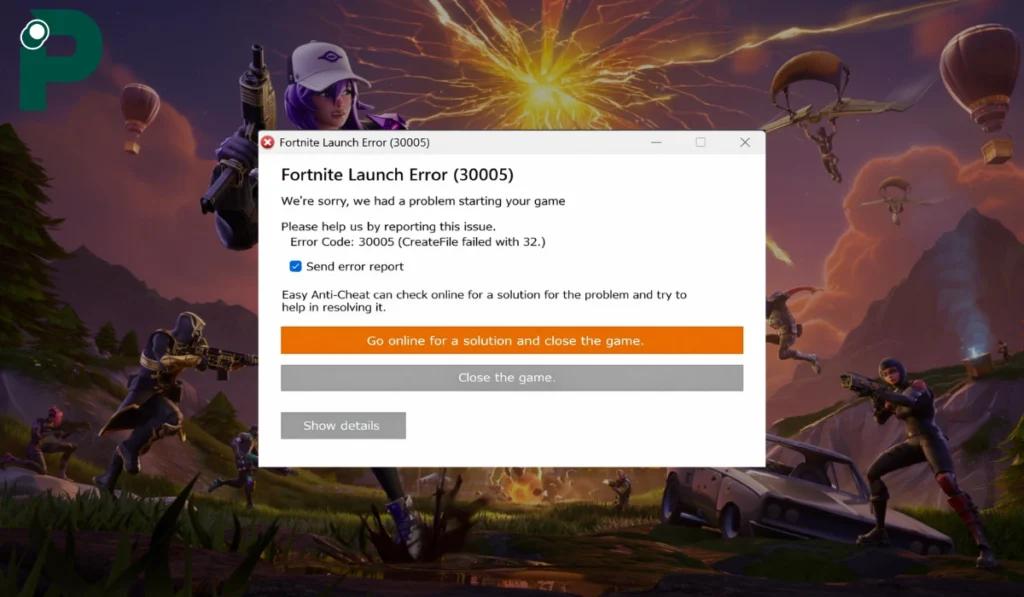
Error code 30005 means the game failed to start because Easy Anti-Cheat could not load properly. You may see a message like “CreateFile failed with 32.” That sounds technical, but it simply means the system could not access a required file. In most cases, that file is called EasyAntiCheat.sys. This file helps Easy Anti-Cheat check if the game is safe to run. If the file is locked, missing, or blocked, the system stops the launch. That’s how Epic Games keeps gameplay fair and secure.
You will usually see this error when launching the game from Epic Games Launcher. The game may crash right away or never open. It often happens on Windows 10 or Windows 11 systems where file permissions or background apps interfere.
Common Causes of Fortnite Error Code 30005
This error can happen for several reasons. Most of the time, it is linked to file access problems or system conflicts that stop Easy Anti-Cheat from working properly.
- Locked Easy Anti-Cheat files by background processes
- File access conflict causing CreateFile failed with 32
- Corrupted or missing EasyAntiCheat.sys file
- Corrupted Fortnite installation files
- Antivirus or Windows Defender blocking Easy Anti-Cheat
- Firewall preventing Easy Anti-Cheat services
- Easy Anti-Cheat service not running
- Outdated Windows 10 or Windows 11
- Corrupted system files inside Windows
- Background apps or GPU tools interfering
- Missing administrator permissions
- Modified game files or cheat-related tools
- Kernel-level security settings blocking access
- Broken or incomplete Easy Anti-Cheat installation
Sometimes it’s just one issue. Sometimes two or three things combine. That’s why the fixes vary.
How to Fix Fortnite Error Code 30005?
These are practical fixes taken from trusted sources like Epic Games, Microsoft, and real user reports from platforms like Steam.
Start from the first fix and move step by step. Most of the time, the issue gets solved early, so don’t rush to advanced solutions.
Fix #1: Restart Your Computer
This is the simplest fix. Sometimes the system just holds a file in the background, and Easy Anti-Cheat can’t access it. When you restart, those locked processes stop, and the file becomes available again. It sounds basic, but it works more often than expected.
Fix #2: Close Background Applications
When too many apps run at once, they can block game files. This often leads to the CreateFile error. Close extra programs like browsers, launchers, or other games before opening Fortnite. A clean start helps Easy Anti-Cheat run without interruption.
Fix #3: Run Fortnite as Administrator
Sometimes the game does not have enough permission to access system files. Running it as administrator gives it the access it needs to load properly.
Follow the steps below to easily run Fortnite as administrator:
- Right-click on Fortnite or Epic Games Launcher
- Click “Run as administrator”
- Allow permission if prompted
- Launch the game again
Fix #4: Verify Fortnite Game Files
Corrupted files are a common reason behind this error. When files are missing or damaged, Easy Anti-Cheat may stop the launch because it detects something wrong. Verifying files through Epic Games Launcher checks everything and replaces broken data.
Here are the following steps which help you to verify game files:
- Open Epic Games Launcher
- Go to Library
- Click the three dots next to Fortnite
- Select “Manage”
- Click “Verify”
- Wait for the process to finish
Fix #5: Delete EasyAntiCheat.sys File
This file plays a key role in starting the game. But sometimes it becomes corrupted or stuck. When that happens, the system cannot create or access it properly. Deleting it forces Easy Anti-Cheat to generate a fresh file during the next launch.
Follow these easy instructions to delete the file without any confusion:
- Open Fortnite installation folder
- Go to EasyAntiCheat or EasyAntiCheat_EOS
- Find EasyAntiCheat.sys
- Right-click and delete it
- Restart your computer
Fix #6: Repair Easy Anti-Cheat
If the anti-cheat system itself is broken, the game will not start. Repairing it fixes missing or damaged components and restores normal function.
Try these simple steps to quickly repair Easy Anti-Cheat:
- Open Fortnite installation folder
- Locate EasyAntiCheat_Setup.exe
- Run the setup file
- Click “Repair Service”
- Wait until it completes
Fix #7: Ensure Easy Anti-Cheat Service Is Running
The game depends on this service to launch. If it is stopped, Fortnite cannot proceed. You need to check and start it manually.
The following steps will show you how to start the service properly:
- Press Windows + R
- Type “services.msc” and press Enter
- Find EasyAntiCheat in the list
- Right-click and select Start
- Close the window
Fix #8: Disable Antivirus or Add Exception
Security software sometimes blocks Easy Anti-Cheat because it thinks it is unsafe. This creates a conflict. When you allow it through antivirus or firewall, the game can run normally again.
Follow the steps below to easily allow Easy Anti-Cheat:
- Open Windows Security or your antivirus
- Go to Virus & Threat Protection
- Click “Manage settings”
- Add an exclusion for EasyAntiCheat folder
- Save changes and restart your PC
Fix #9: Update Windows System
An outdated system can cause compatibility issues. Easy Anti-Cheat relies on updated system files to work correctly. Keeping Windows 11 or Windows 10 updated helps avoid these problems.
Perform the following steps carefully to update Windows:
- Open Settings
- Click “Update & Security”
- Select Windows Update
- Click “Check for updates”
- Install updates and restart
Fix #10: Update GPU Drivers
Old graphics drivers can cause instability. This may affect how the game and Easy Anti-Cheat interact with the system. Updating drivers improves compatibility and performance.
Here’s how you can update GPU drivers in just a few seconds:
- Open Device Manager
- Expand Display Adapters
- Right-click your GPU
- Click “Update driver”
- Follow the instructions
Fix #11: Reinstall Easy Anti-Cheat
If repairing does not fix the issue, a full reinstall can help. This removes all corrupted data and installs a clean version of the anti-cheat system.
These are the exact steps you need to follow to reinstall Easy Anti-Cheat successfully:
- Open EasyAntiCheat setup
- Click “Uninstall”
- Restart your PC
- Run the setup again
- Click “Install”
Fix #12: Perform a Clean Boot
Sometimes hidden programs interfere with the game. A clean boot starts your system with only essential services, which helps you identify conflicts.
Follow these easy instructions to perform a clean boot:
- Press Windows + R
- Type “msconfig”
- Go to Services tab
- Disable non-Microsoft services
- Restart your PC
If the game files are modified, Easy Anti-Cheat may block the launch. Removing such tools restores the original state of the game.
You can perform the following steps to remove unwanted tools:
- Uninstall any cheat or mod tools
- Delete modified files
- Restore original game files
- Restart your PC
Fix #14: Disable Kernel Security Feature
Some Windows security settings can block Easy Anti-Cheat from working properly. Disabling them can fix rare system-level conflicts.
Below are the steps that will guide you to disable this feature:
- Open Windows Security
- Go to Device Security
- Click Core Isolation
- Turn off stack protection
- Restart your system
Fix #15: Reinstall Fortnite (Last Resort)
If nothing works, reinstalling the game is the final step. This removes all corrupted files and resets everything completely. Use Epic Games Launcher to uninstall and install Fortnite again. It takes time, but it usually fixes deep issues that other methods cannot solve.
Prevention Tips to Avoid Fortnite Error Code 30005 in Future
Fixing the error is one thing. Avoiding it is better. Most of these issues come from small system conflicts or file problems that build up over time. If you keep your system clean and updated, you reduce the chances of this error showing up again.
Also, Easy Anti-Cheat works best when nothing interferes with it. So keeping things simple helps more than you think. A few small habits can save you from bigger issues later.
- Keep Windows 11 updated
- Verify Fortnite files from time to time
- Avoid force closing the game during launch
- Add Easy Anti-Cheat to antivirus whitelist
- Close unnecessary background apps before playing
- Update GPU drivers like NVIDIA or AMD
- Don’t use modified files or unofficial tools
Conclusion
In short, error code 30005 happens when Easy Anti-Cheat cannot access or create a required file. This usually comes from locked files, corrupted data, or security software blocking access. It sounds complex, but the cause is often simple once you break it down.
Try the fixes step by step. Most users solve it quickly. If the problem still stays, you can contact Epic Games for help. And if this guide helped you, feel free to share it or drop a comment.
